Ever wonder if your printer is actually working as hard as you are? If you're still printing on just one side of each sheet, you're using twice the paper you need to. Learning how to print double sided on Mac takes under two minutes — and the paper savings add up fast. This guide from our printing tips collection walks you through every method, from automatic duplex to manual page-flipping, so you can start printing smarter right now.
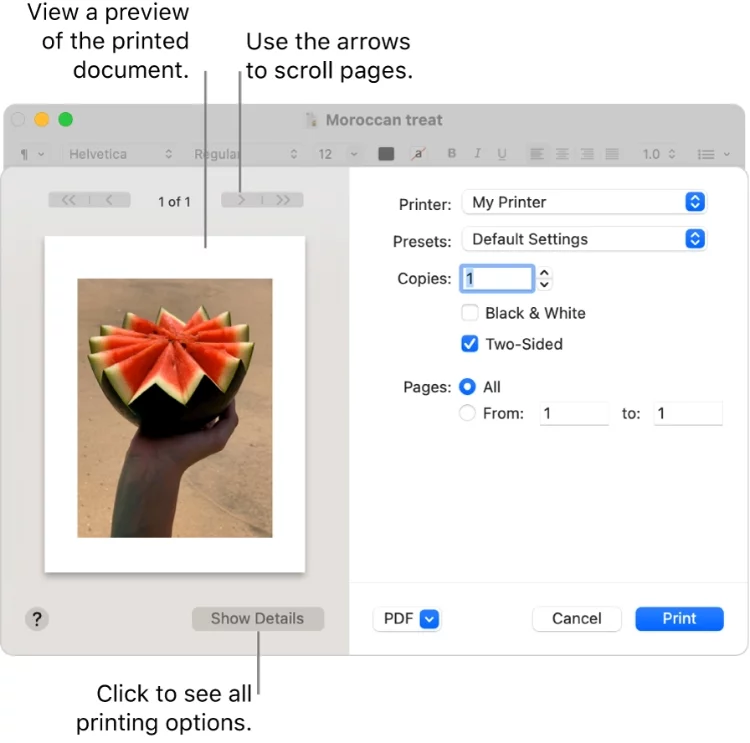
Duplex printing — printing on both sides of a single sheet — is built into macOS. You don't need extra software. You don't need a special driver. You just need to know which menu to open and which setting to flip. The challenge is that the option is tucked inside the Print dialog in a spot most people never look.
Your printer model matters, though. Some printers flip pages automatically. Others need you to do it by hand. We cover both scenarios in full detail below. And if you're still getting comfortable with Mac printing in general, our guide on how to print on Mac is a solid place to start before diving in here.
Contents
- How to Print Double Sided on Mac: Step by Step
- Automatic vs. Manual: Which Method Is Right for You?
- Real-World Situations Where Duplex Printing Pays Off
- A Quick Comparison of Your Duplex Options
- The Honest Pros and Cons of Printing Double Sided
- Common Myths About Double-Sided Printing on Mac — Busted
- Pro Tips for Better Duplex Results Every Time
- Frequently Asked Questions
- Next Steps
How to Print Double Sided on Mac: Step by Step
The Mac Print dialog holds everything you need. Open it from almost any app by pressing Command + P. From there, reaching the duplex settings is straightforward — but the exact path differs depending on whether your printer handles both sides on its own or needs your help.
Using Automatic Duplex Printing
If your printer has a built-in duplexer (an internal mechanism that flips the page for you), this is the easiest route. Open your document and press Command + P. If you only see a compact dialog, click "Show Details" at the bottom to expand all options. Find the dropdown menu currently set to "Preview" and change it to "Layout." You'll see a "Two-Sided" checkbox — check it. Then choose your binding edge: Long-Edge binding suits standard portrait documents like reports and letters, while Short-Edge binding is better for landscape pages like spreadsheets. Click Print and walk away.
Your printer handles everything from here. Most modern laser printers and many inkjets support this. If you're shopping for a reliable duplex model, our best duplex scanning printer guide covers the top options across every budget.
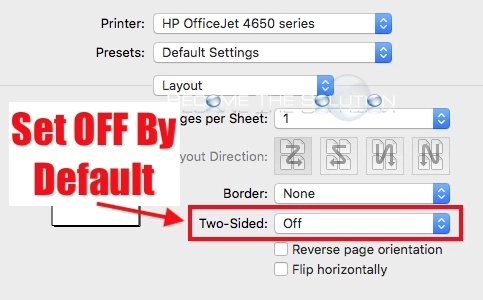
Printing Double Sided Manually
No built-in duplexer? You can still print double sided — it just takes one extra step. Open your document and press Command + P. In the Print dialog, open the dropdown and select "Paper Handling." Set "Pages to Print" to "Odd Only" and click Print. Wait for the job to finish completely. Take the output stack, flip it face-down, and reinsert it into the paper input tray — top of the page pointing toward the printer (though this varies by model). Go back to Print dialog, set "Pages to Print" to "Even Only," and click Print again.
The result is a clean double-sided document. Always run a 4-page test print first to confirm the correct reload orientation for your specific printer. Getting it wrong on page one means reprinting everything.
Pro tip: Before reloading the stack, draw a pencil arrow on the back of the top sheet pointing up — this gives you a permanent reference for the correct feed direction on your printer.
Automatic vs. Manual: Which Method Is Right for You?
The choice comes down to your printer's capabilities, your job size, and your patience. Automatic duplex wins for anything over ten pages. You configure it once and the printer does the rest. Manual duplex is perfectly fine for short jobs — a folded handout, a quick reference card, a four-page pamphlet. Beyond that, the page-flipping becomes tedious and error-prone.
Print quality is another factor. Inkjet printers can smear wet ink on the second pass during manual duplex. Letting the first side dry for 30 to 60 seconds before reloading fixes this almost every time. Laser printers don't have this problem — toner fuses instantly.
If you print large duplex jobs regularly and your printer doesn't support automatic duplexing, the real question is whether upgrading makes financial sense. Our breakdown on whether it's cheaper to buy a printer or use a copy shop can help you work through that calculation honestly.
Real-World Situations Where Duplex Printing Pays Off
Knowing how to print double sided on Mac is useful. Knowing when to use it is what makes the difference in practice.
Office reports and proposals look more polished when double-sided. A 20-page single-sided report feels like a stack of loose paper. The same report double-sided feels like a document. Meeting handouts, training materials, and internal memos all benefit from the same treatment.
Students also gain a real advantage here. Double-sided notes are easier to carry and review. And if you're printing a presentation to share with classmates, our guide on how to print PowerPoint with notes shows you how to combine speaker notes with your slides — duplex that result and you've got a compact, professional handout packet.
Booklets and folded brochures essentially require duplex printing to function. A brochure printed single-sided is just a stack of one-sided sheets. Double-sided output is what transforms those sheets into a finished product. Same goes for instruction manuals, recipe cards, and event programs.
A Quick Comparison of Your Duplex Options
Still deciding which approach fits your workflow? This table lays out the key differences so you can pick the right method before you click Print.
| Feature | Automatic Duplex | Manual Duplex |
|---|---|---|
| Printer requirement | Built-in duplexer required | Any printer |
| User effort | Minimal — configure once, done | Moderate — manual reload required |
| Best job size | Any size, especially 10+ pages | Short runs, under 10 pages |
| Error risk | Very low | Moderate (orientation, page order) |
| Print speed | Fast and continuous | Slower — two separate passes |
| Ink smearing risk | Low — printer controls timing | Higher on inkjets without drying time |
| Setup cost | Requires compatible printer | Free — uses existing hardware |
The takeaway is simple: use automatic duplex whenever your printer supports it. If it doesn't, manual duplex is a reliable backup — just practice on a short test document before running a big job.
The Honest Pros and Cons of Printing Double Sided
Duplex printing is almost always worth it. But it's not a perfect fit for every document or every printer. Here's an unfiltered look at both sides.
The biggest advantage is paper savings. You use exactly half the sheets for the same content. Over a year of regular printing, that's a significant reduction in both cost and waste. It also makes your documents look more professional. A double-sided report conveys intentionality. A single-sided stack just looks like it came out of a home office.
On the downside, ink bleed-through is a real concern with thin paper and inkjet printers. If you're printing graphics or photos, use paper rated for duplex and heavier stock — anything under 75 g/m² risks becoming transparent at the ink-heavy areas. Some legal forms and official documents are also explicitly designed for single-sided printing, so always verify before you flip the switch.
Warning: Never use duplex printing on paper thinner than 75 g/m² — ink bleeds through lightweight stock and makes both sides difficult to read.
Alignment is the other risk with manual duplex. If you reload the stack at even a slight angle, page two prints crooked. Automatic duplex eliminates this entirely. If alignment is critical — say, for certificates or formal documents — stick to automatic duplexing or a printer you know handles manual reloads cleanly.
Common Myths About Double-Sided Printing on Mac — Busted
A lot of people avoid duplex printing based on things they've heard that simply aren't true. Here are the most common misconceptions, corrected.
Myth: "My printer can't do it." Every printer supports manual duplex. You don't need a built-in duplexer. The odd/even method works on any printer that connects to a Mac, regardless of age or model.
Myth: "Running paper through twice damages the printer." It doesn't. Printers are built to handle multiple passes. Automatic duplexers run paper through a reverse mechanism thousands of times without issue. Manual duplex is even gentler — the paper simply re-enters the tray like a fresh sheet.
Myth: "Mac's duplex support isn't as good as Windows." macOS has supported duplex printing natively for years. The Print dialog gives you full control over binding edge, page order, and paper handling. There's no meaningful functional gap between the two platforms for this task.
Myth: "You use more ink printing double sided." You use the same amount of ink or toner — spread across two passes instead of one. You're not adding coverage. You're reducing paper. That's the entire point.
If your documents often need reformatting before they're ready to print — like resizing from legal to letter — our guide on how to shrink a Word document from legal to letter size is a useful companion read.
Pro Tips for Better Duplex Results Every Time
Once you've mastered how to print double sided on Mac, these habits will sharpen your results and save you from the most common frustrations.
Use paper rated for two-sided printing. Look for "duplex" or "two-sided" on the ream packaging. This paper has a slightly heavier weight and a surface coating that prevents bleed-through. Standard 20 lb copy paper works in most cases, but 24 lb or 28 lb stock gives noticeably cleaner results on both sides.
Save a duplex preset. In the Print dialog, configure your preferred duplex settings — binding edge, page order, layout — then open the Presets dropdown and click "Save Current Settings as Preset." Name it "Duplex – Long Edge" or whatever fits your most common use. One click activates it from then on.
For multi-section documents, print each section as a separate duplex job. This makes collating, stapling, or binding much easier. If you're putting together a booklet or bound report, our guide on types of binding for printing covers every option from saddle-stitch to perfect binding.
Check your page count before starting. Duplex jobs work cleanly with even page counts. An odd number of pages leaves one blank side at the end — that's fine, but it's good to know ahead of time rather than wondering if something went wrong.
Finally, for inkjet manual duplex, wait 60 full seconds after the first pass before reloading. Set a timer. It feels like a long wait, but it eliminates smearing completely.
Frequently Asked Questions
Why don't I see a two-sided option in the Mac Print dialog?
The option may be hidden because the compact view is open. Click "Show Details" at the bottom of the Print dialog to expand all settings. Then use the dropdown menu — currently set to "Preview" — and switch it to "Layout." The Two-Sided checkbox appears there. If it's still absent, your printer driver doesn't support automatic duplex, and you'll need to use the manual odd/even method through the "Paper Handling" dropdown instead.
How do I reload paper correctly for manual duplex printing on a Mac?
Print the odd pages first and wait for the job to finish completely. Remove the stack from the output tray and flip it face-down. Reinsert it into the paper input tray with the top of the printed pages pointing toward the printer — though the exact direction varies by model. Always run a 4-page test document first to confirm the correct reload orientation before committing to a large print job.
Does double-sided printing work with all file types on Mac?
Yes. macOS applies duplex settings at the system level through the Print dialog, so the method works identically with PDFs, Word documents, Pages files, web pages from any browser, and any other printable file type. The setting doesn't change based on the application you're printing from.
Can I make duplex the default setting for all print jobs on Mac?
Yes. Configure your preferred duplex settings in the Print dialog, then open the Presets dropdown and choose "Save Current Settings as Preset." For a deeper default, open System Settings, go to Printers & Scanners, select your printer, and click "Printer Preferences" or "Options & Supplies" — many printer drivers let you set duplex as the permanent default from that panel so it applies automatically to every new print job.
Next Steps
- Open any document on your Mac right now, press Command + P, and click "Show Details" — locate the Two-Sided checkbox or Paper Handling menu so you know exactly where it lives before you need it.
- Run a 4-page test print using your printer's method — automatic or manual — to confirm the settings work correctly and that your paper reload orientation is right.
- Save a duplex preset in the Print dialog so you can activate two-sided printing with a single click on every future job.
- If your printer doesn't support automatic duplex and you print frequently, review our best duplex scanning printer guide to find an affordable model that handles it natively.
- Explore our printing tips collection for more guides on getting better results from your Mac and home or office printer setup.



About Chris & Marry
Chris and Mary are a couple with a shared background in graphic design and print production who have spent years working with printers across creative and professional contexts — from art printing and photo output to label production and professional document work. Their combined experience evaluating printer performance, color accuracy, and paper handling across inkjet and laser platforms gives them a practical, hands-on perspective on what makes a printer worth buying. At ShopChrisAndMary, they cover printer reviews, buying guides, and recommendations for artists, photographers, and professional users.
Time to get FREE Gifts. Or latest Free printers here.
Disable Ad block to reveal all the info. Once done, hit a button below