How To Shrink A Word Document From Legal Size To Letter Size
by Chris & Marry
Have you ever opened a Word document only to find it locked at legal size — and your printer keeps clipping the bottom of every page? If you need to shrink word document legal to letter, you're not alone. This formatting mismatch trips up beginners and experienced users alike, and it happens more often than you'd think. The good news is that Word gives you more than one way to solve it, and the fastest method takes under sixty seconds. You'll find even more help in our printing tips section once you're done here.
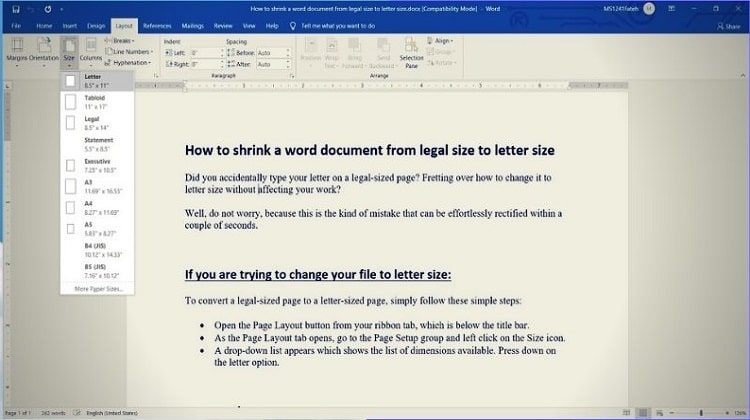
Legal paper measures 8.5 × 14 inches. Letter paper measures 8.5 × 11 inches. That three-inch gap might seem minor, but it causes real problems at the printer — text gets clipped, content overflows, and the document doesn't fit standard folders or binders. Whether you received a template from a colleague, downloaded a government form, or inherited an old file, fixing the page size is a practical skill that saves time and wasted paper.
One important heads-up before you start: switching the page size in Word can cause text, images, and tables to reflow. You may need to do a small amount of cleanup afterward. The sections below cover every method, the trade-offs between them, and the situations where each one makes the most sense.
Contents
- The Fastest Way to Shrink Word Document Legal to Letter
- Two Approaches — Simple Fix vs. Full Reformat
- Legal vs. Letter — A Side-by-Side Look
- When Changing Page Size Makes Sense — and When It Doesn't
- Three Things People Get Wrong About Page Size Conversion
- Pro Tips for a Cleaner Conversion
- Real-World Scenarios Where This Comes Up
- Frequently Asked Questions
- Key Takeaways
The Fastest Way to Shrink Word Document Legal to Letter
Using the Layout Tab in Word
The quickest route is through the Layout tab at the top of Word (called "Page Layout" in older versions). Open your document, click the Layout tab, then click the Size button in the Page Setup group. A dropdown list of paper sizes will appear. Select "Letter (8.5 × 11 in)" from the list. Word applies the change immediately. If your document contains only one section, that single click is all you need. The entire document switches over at once.
Applying the Change to All Sections at Once
Documents built from templates often contain multiple sections, which means the Layout tab change may only update one section at a time. To cover everything in one move, go to Layout → Size → More Paper Sizes. This opens the Page Setup dialog. Under the Paper tab, set Width to 8.5" and Height to 11". At the bottom of the dialog, find the "Apply to" dropdown and select "Whole document." Click OK. Every section updates simultaneously, and you won't have to repeat the steps page by page.
Two Approaches — Simple Fix vs. Full Reformat
The Beginner Method: One Setting, Done
If you're new to Word or just need a quick fix, the Layout tab method above is your best friend. It's fast, it requires no technical knowledge, and it works on virtually every version of Word. For a simple text document with no images or complex tables, this usually produces a clean result. Change the size, scroll through once to check for anything awkward, and you're finished. Most everyday documents — letters, reports, basic contracts — fall into this category.
The Advanced Route: Reformat for a Clean Look
If your document contains tables, images, text boxes, or multi-column layouts, a simple page size change may leave things looking messy. The advanced approach involves changing the page size and then adjusting margins, image dimensions, and table widths to match the new canvas. Start by writing down your current margin settings before making any changes — go to Layout → Margins → Custom Margins and note the values. After switching to letter size, reset margins to something like 1 inch on all sides, then resize any images or tables that overflowed. It takes a few extra minutes, but the result looks intentional rather than squeezed. If margins and edge spacing are a particular concern in your project, our guide on how to print to the edge of paper covers that topic in detail.
Legal vs. Letter — A Side-by-Side Look
How the Difference Affects Printing
Understanding the actual difference between these two paper sizes helps you make smarter decisions about when and how to convert. Paper sizes are standardized differently around the world — the US uses its own set of dimensions rather than the metric ISO system used in most other countries. The table below lays out the key differences at a glance.
| Property | Legal Paper | Letter Paper |
|---|---|---|
| Dimensions | 8.5 × 14 inches | 8.5 × 11 inches |
| Common Use | Contracts, court filings, spreadsheets | General printing, letters, reports |
| Printer Support | Requires legal tray or manual feed | Supported by virtually all printers |
| File Folder Fit | Requires legal-size folders | Fits standard letter-size folders |
| Word Default | Not the default | Default in most US Word installs |
Which Size Does Your Printer Prefer?
Most home and office printers are loaded with letter paper by default. If you send a legal-size document to a printer stocked with letter paper, one of two things happens: the printer clips the content, or it scales the page down automatically — and neither result is one you control. Changing the page size in Word before you print gives you full control over the output. If you regularly print on HP printers and want to understand paper tray and duplex settings in more depth, our guide on how to print on both sides of paper for HP printers walks through those settings clearly.
When Changing Page Size Makes Sense — and When It Doesn't
Good Reasons to Switch to Letter
There are several situations where converting from legal to letter is clearly the right move. You're printing at home and only have letter-size paper on hand. You need to file the document in a standard binder or folder. You're sharing the file digitally and want it to display correctly without awkward scrolling on standard screens. You're submitting to a printer or print shop that doesn't stock legal-size paper. In all these cases, switching to letter makes the document more practical and universally usable without affecting the core content in any meaningful way.
When You Should Leave It as Legal
Some documents are designed for legal paper and need to stay that way. Legal contracts, court filings, and certain government forms use the extra length because the content genuinely requires it — shrinking the page without adjusting the content means smaller text or overflowing margins. If you're filing a document with a court or agency, confirm that a letter-size version is acceptable before you change anything. When in doubt, ask the recipient what format they need rather than guessing and reformatting twice.
Three Things People Get Wrong About Page Size Conversion
Myth 1: Changing Page Size Automatically Shrinks the Text
This is one of the most persistent misunderstandings. Changing the page size in Word does not scale your text down to fit. It simply tells Word to use a different canvas size. Your font stays at exactly the size you set — 12pt stays 12pt. What changes is how much vertical space is available on each page, which means some content may move to the next page or spill past the margins. If you want the text to physically scale down, you need to reduce the font size manually or use print scaling, which is a separate feature entirely.
Myth 2: You'll Definitely Lose Your Formatting
People often avoid changing page size because they fear their whole document will fall apart. In practice, simple documents — plain text, basic tables, straightforward layouts — convert cleanly with no visible issues. More complex layouts with floating images or custom column setups may need a small amount of adjustment. But losing your formatting entirely is an exaggeration for most everyday documents. A quick scroll-through after the change is usually all the quality check you need. Save a backup first, make the change, review, and fix any stray elements. That's the whole process.
Myth 3: Using Print Scaling Is the Same Thing
Some people skip the page size change altogether and use the print scaling option in the print dialog — specifically the "Scale to paper size" or "Shrink to fit" setting. This does make your content fit on letter paper at the printer, but it only affects that one printout. The document file itself remains set to legal size. Anyone who opens the file afterward sees legal dimensions. If you want the document permanently set to letter size — so it behaves correctly every time it's opened or printed — you need to change the page size in Word directly, not rely on a print-time workaround.
Pro Tips for a Cleaner Conversion
Check Your Margins First
Before you change the page size, note your current margin settings. Legal documents sometimes use narrow margins to fit more content on the longer page. When you switch to letter size with those same narrow margins, the layout can look cramped or unbalanced. A good starting point for letter-size documents is 1-inch margins on all sides. You can always tighten them after you see how the content lands on the new page size.
Use Print Preview Before You Commit
After changing the page size, open Print Preview (File → Print) and scroll through every page before you print or save a final version. This is the fastest way to spot text that got cut off, images that shifted unexpectedly, or pages that ended up nearly empty due to content reflow. Catching these issues in preview costs you nothing. Catching them after printing a full stack wastes ink, paper, and time. If your document includes photos alongside text, our guide on how to print photos in Windows 10 has additional tips for getting clean, accurate print output.
Save a Backup Before You Start
This step is easy to skip, but worth doing every single time. Use File → Save As to create a copy of the original legal-size document before you make any changes. Name it something clear like "DocumentName_legal_backup.docx" so you can find it quickly if needed. If the conversion doesn't go as expected, you have the original to fall back on without any loss. It takes ten seconds and can prevent a lot of frustration.
Real-World Scenarios Where This Comes Up
Downloaded Legal-Size Forms
Many forms available for free download — rental agreements, permission slips, certain tax forms — are formatted for legal paper. If your printer or the person receiving the form only works with letter paper, you'll need to convert. The simple page size change works well here as long as the form doesn't use a protected or locked layout. If the form is locked and you can't edit it, try printing it to PDF first using Microsoft's built-in Print to PDF option, then resize the pages in a PDF editor before printing.
Documents from Law Offices or Government Agencies
Legal professionals and government agencies in the United States sometimes use legal-size paper as a standard for official correspondence. If you receive a Word document from one of these sources and need to reprint it on letter paper, the methods in this guide apply directly. Just remember that legal documents often have precise formatting requirements. If you plan to return a modified document to a court or agency, confirm that a letter-size version is acceptable before you make the switch — some filings have strict format rules that override your personal preferences.
Frequently Asked Questions
Can I change the page size in Word without affecting the text?
Changing the page size in Word does not scale or modify your actual text content — it only changes the size of the page canvas. Your font sizes, spacing, and formatting stay exactly as they are. However, your text and other elements will reflow to fit the new dimensions, which may shift some content to different pages or push items past the margins. A quick review in Print Preview after the change will show you exactly what moved and what needs adjustment.
What if the document is password-protected and I can't edit it?
If a Word document is protected and you can't access the Layout tab to change the page size, your best option is to print the document to PDF using the Microsoft Print to PDF printer, and then use a PDF editor to resize the pages. Alternatively, you can use Word's print scaling option (File → Print → Scale to paper size) to shrink the printout to letter size without editing the file itself — just keep in mind that the file will still be set to legal size for anyone who opens it later.
Does changing the page size in Word affect all pages or just the current one?
By default, applying a page size change through the Layout tab affects only the section your cursor is currently in. If your document has multiple sections, open the Page Setup dialog (Layout → Size → More Paper Sizes), set the Width to 8.5" and Height to 11", then choose "Whole document" from the "Apply to" dropdown before clicking OK. This ensures every page in the file updates at once so you don't end up with a mix of legal and letter pages.
Key Takeaways
- To shrink word document legal to letter, go to Layout → Size → More Paper Sizes, set dimensions to 8.5" × 11", and choose "Whole document" from the "Apply to" dropdown before clicking OK.
- Changing the page size does not scale your text — it only adjusts the canvas, so review your document in Print Preview afterward to catch any reflow issues before printing.
- Always save a backup of the original legal-size file before making changes so you can restore it without any loss if something goes wrong.
- If the document is locked or protected, use Microsoft Print to PDF and a PDF editor to resize the pages instead of trying to edit Word directly.



About Chris & Marry
Chris and Mary are a couple with a shared background in graphic design and print production who have spent years working with printers across creative and professional contexts — from art printing and photo output to label production and professional document work. Their combined experience evaluating printer performance, color accuracy, and paper handling across inkjet and laser platforms gives them a practical, hands-on perspective on what makes a printer worth buying. At ShopChrisAndMary, they cover printer reviews, buying guides, and recommendations for artists, photographers, and professional users.
Time to get FREE Gifts. Or latest Free printers here.
Disable Ad block to reveal all the info. Once done, hit a button below