Ever found yourself standing at a return counter, phone in hand, realizing you have absolutely no idea how to print an Amazon receipt? You're in good company — it trips up a lot of shoppers, mostly because Amazon doesn't call it a "receipt" the way a store register does. The good news is your proof of purchase is sitting right there in your account, and once you know where to look, you can have a clean printed copy in minutes. This guide walks you through every method, every common snag, and how to build a system that works for you long-term.
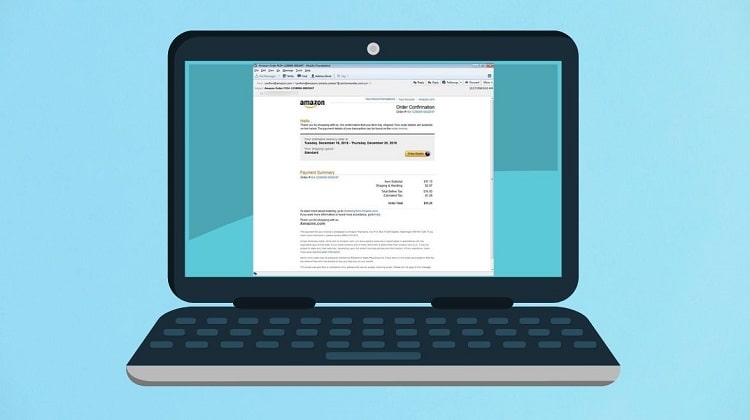
The first thing that confuses people is Amazon's terminology. The platform uses the word "invoice" instead of "receipt" throughout its interface. A receipt is simply a written confirmation that a payment was made — and Amazon's invoice serves exactly that purpose. Once that clicks, navigating to the printable version takes under a minute.
Whether you're on a desktop, laptop, or smartphone, we'll cover the whole process. And since many of the same tricks that help you print a web page cleanly also apply here, it's worth keeping those techniques in mind when Amazon's layout causes headaches with your print settings.
Contents
When and Why You'd Actually Need a Printed Amazon Receipt
It's easy to assume printed receipts are outdated, but there are plenty of real situations where having a physical copy of your Amazon order confirmation still matters. Understanding those scenarios helps you figure out whether a quick browser printout is enough or whether you need something more polished before you even start.
Returns and Refunds
Amazon's own return flow is largely digital these days — you get a QR code, scan it at a drop-off location, and you're done. But third-party sellers on Amazon's marketplace sometimes require a printed invoice before they'll process a refund. This is especially common with smaller sellers who handle their own return process rather than relying on Amazon's system. Always check the seller's return policy before assuming a QR code will be accepted, because getting turned away at the post office with no backup documentation is genuinely frustrating.
Business Expenses and Tax Records
If you're purchasing anything through Amazon for business purposes — office supplies, equipment, shipping materials — your accountant is going to want a proper paper trail. Amazon invoices include line-item descriptions, order dates, payment method used, and a transaction total, which is everything a bookkeeper needs to categorize and log an expense. For freelancers and sole proprietors especially, having a printed or saved copy on file before tax season rolls around can save you a real scramble later.
Gift Recipients and Warranty Claims
Sometimes you buy something as a gift and the recipient needs proof of purchase for a manufacturer warranty. The date of purchase is usually the key piece of information a warranty department is looking for, and that lives right on the invoice. You can print a copy and, if price sensitivity is an issue, use your browser's print settings to adjust what's visible before sending the page to your printer. Amazon also offers a separate gift receipt option for some orders, which hides pricing entirely — worth knowing about before you reach for the scissors and tape.
Two Methods for How to Print Your Amazon Receipt
There's more than one way to approach this, and the right method depends on what you need the document for. A quick browser print works perfectly well for casual personal records. A downloaded PDF is a better fit when you need something polished enough to hand to a supervisor or submit alongside formal documentation. Here's how both work in practice.
The Beginner Method: Print Straight From Your Browser
This is the approach most people use, and it covers the majority of situations. Log into your Amazon account, click Returns & Orders in the top-right corner, find the specific order you need, and click the order number to open the order details page. Look for a link labeled "Invoice" — it may appear under "Order Details" or behind a small dropdown arrow depending on your screen size. Click it, and your browser's print dialog will open automatically. From there you can send it directly to your printer or choose "Save as PDF" to create a digital copy without printing at all.
One quick tip before you hit print: always check the preview first. Amazon's order pages weren't designed with printing in mind, and the right side of the page sometimes gets clipped. Switching to landscape orientation in your print dialog solves this in most cases. If you're still losing content, try reducing the scale to 80 percent — that almost always fits everything onto one clean page.
The Advanced Method: Download a PDF Invoice
For anything that needs to look more official — expense reports, business filings, or documentation you're sharing with someone else — Amazon's downloadable PDF invoice is the better choice. On eligible orders, you'll find a "Download invoice" link right on the order details page. This generates a cleanly formatted PDF that looks far more professional than a browser printout. Keep in mind that not every order type supports this option. Digital purchases like Kindle books or Prime Video rentals typically don't generate a downloadable invoice, and some third-party orders may not offer one through Amazon's interface at all.
The table below compares the four most common approaches so you can quickly find the one that fits your situation:
| Method | Best For | Formatting Quality | Requires a Printer? | Works on Mobile? |
|---|---|---|---|---|
| Browser Print | Quick personal records, returns | Moderate — may clip edges | Yes, or save as PDF | Yes, with adjustments |
| PDF Download | Business expenses, formal submissions | High — clean, professional layout | No — digital friendly | Yes, easy to share |
| Order Confirmation Email | Digital archiving, forwarding to others | Variable by email client | Optional | Yes |
| Screenshot | Quick visual reference only | Low — not suitable for official use | No | Yes |
What to Do When Your Amazon Receipt Won't Print Right
Even with a straightforward process, things don't always cooperate. The invoice option might be absent, the printout might look like a jumbled mess, or you might be stuck on a phone with no obvious path to a PDF. Here are the most common issues and how to work through them.
The Invoice Option Is Missing or Grayed Out
Digital purchases — Kindle books, Prime Video rentals, Amazon Music — often don't generate a traditional invoice through the account interface. For these, Amazon sends a payment confirmation to your email address, and that email is your best bet for a printable record. Search your inbox for the original order confirmation, open it, and print directly from your email client. For marketplace orders where the third-party seller hasn't enabled Amazon's invoice system, your best path is to contact the seller directly and request an invoice from them.
It's also worth double-checking whether you're in the right account. Amazon Business accounts have a more robust invoicing system than standard consumer accounts, and the downloadable PDF option may only appear when you're logged into a Business account. If your company uses Amazon Business, switching to that account before searching for your invoice could immediately solve the problem.
The Printout Cuts Off or Looks Wrong
This is probably the most common frustration, and it almost always comes down to browser print settings rather than anything wrong with your printer. Try switching to landscape orientation first — that fixes the clipped-right-edge problem in the majority of cases. If content is still being cut, drop the scale down to 75 or 80 percent. Enabling "Background graphics" in your print options can also help if sections of the page appear blank or weirdly empty in the preview.
If none of that works, the most reliable fix is to use your browser's "Print to PDF" option to create a file first, then open that file and print from your PDF viewer. Adobe Acrobat and most browser-based PDF readers handle margins and scaling far more gracefully than printing directly from a live web page. While you're thinking about print quality, it's also worth making sure your hardware is in good shape — worn or dirty rollers can cause misfeeds and alignment problems that make even well-formatted documents come out looking skewed. Our guide on how to clean printer rollers covers exactly what to look for and how to fix it.
Printing From a Mobile Device
The Amazon mobile app isn't particularly helpful when it comes to invoices. It doesn't always expose the invoice link the same way the full website does, and navigating to it can feel like hunting for a hidden menu. Your best workaround is to open a mobile browser — Chrome or Safari both work well — navigate to amazon.com, and switch to "Desktop site" mode from your browser's settings menu. From there, follow the same steps you'd use on a computer. Once you've located the invoice, use your browser's share menu to either print directly to a wireless printer or save the page as a PDF to print later from any device.
Keeping Your Amazon Receipts Organized Long-Term
Knowing how to pull up and print one Amazon receipt when you need it is useful. Having a system that makes every receipt easy to find months or years later is genuinely valuable — especially once the volume of purchases starts to add up.
Digital Filing vs. Physical Storage
For most people, a digital filing system is the smarter long-term choice. PDFs don't fade, don't take up drawer space, and can be searched by keyword in seconds. A simple folder structure organized by year and month — or by category like "Returns," "Business Expenses," and "Personal" — is usually all you need. Storing those folders in Google Drive or Dropbox adds cloud backup so nothing disappears if your computer has a problem. The only real advantage of physical receipts is when someone specifically needs an original paper document, which is increasingly rare.
Using a Label System to Stay on Top of Your Records
A simple labeling system can turn a chaotic stack of receipts into a well-organized archive you can actually use. If you go the physical route, label makers are genuinely useful for creating category tabs for a filing binder — categories like "Amazon Returns," "Office Equipment," and "Tax Year 2025" make retrieval fast even when you're in a hurry. Our label makers guide covers a range of options from basic thermal models to more feature-rich units, so you can find something that fits your setup without overcomplicating it. Even a simple, inexpensive label maker can save you a surprising amount of time once your filing system is in place.
The Real Cost of Printing Amazon Receipts
It's tempting to think of printing as essentially free since the printer is already sitting on your desk. But if you're printing receipts regularly — especially for a small business — the actual per-page cost is worth understanding before it quietly adds up.
Ink and Paper: What You're Actually Spending
A standard Amazon receipt prints in black and white on a single page, which keeps costs low. Most inkjet printers run around 3 to 5 cents per page in ink, depending on your cartridge yield and how much of the page is covered with text. Add in a sheet of paper at roughly half a cent each, and you're looking at about 4 to 6 cents per receipt. That sounds trivial — and for occasional personal use, it genuinely is. But if you're running a business and printing 30 to 50 receipts a month across multiple accounts and orders, you're spending a few dollars monthly plus whatever time it takes to manage them.
At higher volumes, a laser printer is almost always the more economical choice. Toner cartridges have a much higher page yield than inkjet cartridges, which drives the per-page cost down to around 1 to 2 cents for black-and-white pages. Laser printers also handle occasional use better — you won't come back after two weeks away to find that a dried-out cartridge has ruined your next print job, which is a very real risk with inkjet machines that sit idle.
When It Makes More Sense to Go Digital
For most day-to-day Amazon purchases, you honestly don't need a printed receipt at all. Amazon keeps your full order history indefinitely, and you can pull up any invoice digitally whenever you need it. The only time printing is truly necessary is when you're handing the document to someone else — a bookkeeper, a returns desk, a warranty department — who specifically needs a physical copy or a PDF they can file on their end.
For everything else, saving receipts as PDFs to a well-organized folder gives you the same documentation value as a printed copy, with none of the ink and paper overhead. Amazon Business users get an even more robust digital invoicing system with downloadable reports and VAT invoices (value-added tax invoices used in many countries outside the US), making the case for going fully digital even stronger if your purchase volume is high.
Key Takeaways
- To print an Amazon receipt, log into your account, open the order details page, and click the "Invoice" link — then print from your browser or download as a PDF for a cleaner, more formal document.
- Amazon labels it an "invoice" rather than a receipt, and the option may not appear for digital purchases or certain third-party marketplace orders — check your order confirmation email as a backup.
- Common print problems like clipped pages are almost always fixed by switching to landscape orientation or reducing the print scale in your browser settings before sending the job to paper.
- For long-term records, a digital PDF filing system beats printed copies for most use cases — but when you do need physical receipts, a simple label system keeps everything easy to find when it matters.



About Chris & Marry
Chris and Mary are a couple with a shared background in graphic design and print production who have spent years working with printers across creative and professional contexts — from art printing and photo output to label production and professional document work. Their combined experience evaluating printer performance, color accuracy, and paper handling across inkjet and laser platforms gives them a practical, hands-on perspective on what makes a printer worth buying. At ShopChrisAndMary, they cover printer reviews, buying guides, and recommendations for artists, photographers, and professional users.
Time to get FREE Gifts. Or latest Free printers here.
Disable Ad block to reveal all the info. Once done, hit a button below