What Is the Difference Between a Plotter and a Wide-Format Printer?
by Chris & Marry
Have you ever stared at a product listing wondering whether a "plotter" and a "wide-format printer" are actually two names for the same thing? The short answer is: they overlap, but they serve different masters. Understanding the plotter vs wide-format printer distinction can save you from a costly mistake — whether you're equipping an architecture studio, a sign shop, or a photography print lab. The right machine depends on what you're producing, how precise the output needs to be, and what materials you'll be printing on. Browse our printing tips hub for more guidance on matching the right hardware to your specific workflow.
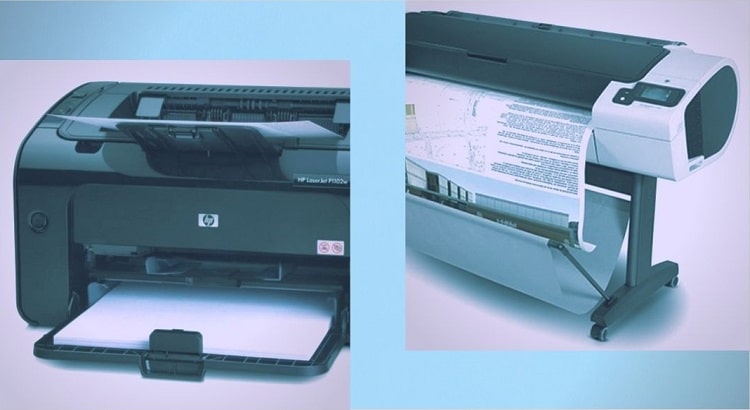
Both machine types handle output wider than your standard desktop printer can manage. But their underlying technology, ink systems, and ideal use cases point in noticeably different directions. One was engineered for pinpoint vector precision. The other was built to lay down rich, photographic color across a broad range of substrates. Neither is universally better — the right call depends entirely on the work in front of you.
This guide covers the origin of each machine, their real-world applications, a step-by-step decision framework, and practical maintenance and troubleshooting advice — so you can make a confident, informed choice and use whatever you own to its full potential.
Contents
- How Plotters and Wide-Format Printers Came to Be
- Plotter vs Wide-Format Printer: Real-World Applications
- How to Choose the Right Machine for Your Work
- Beginner Buyers vs. Professional Users: Matching the Machine to Your Needs
- Keeping Your Machine Running at Peak Performance
- Common Output Problems and How to Fix Them
- Pro Tips for Better Results from Both Machine Types
How Plotters and Wide-Format Printers Came to Be
What Is a Plotter?
A plotter is an output device designed to produce vector-based graphics by physically moving a pen, cutting blade, or inkjet head across a substrate. The technology dates back to the 1950s, when engineers needed a reliable method for printing precise technical drawings directly from early computer systems. Plotters quickly became standard equipment in architecture, civil engineering, and cartography — long before photo-quality large-format printing was technically feasible.
Traditional pen plotters moved real ink pens across paper on two axes. Today, the term "plotter" most often refers to an inkjet-driven machine that operates on vector logic — meaning it draws lines and geometric shapes based on coordinate data, rather than laying down a pixel grid the way a photo printer does.
Types of plotters you'll encounter today:
- Inkjet plotters — the most common type; use piezoelectric or thermal inkjet heads for precision line output on paper, vellum, or drafting film
- Cutting plotters — replace the ink cartridge with a blade to cut vinyl, cardstock, or heat-transfer film; widely used in signage and apparel decoration
- Flatbed plotters — the substrate stays stationary while the carriage moves on both axes; common in industrial cutting and specialty signage
- Drum plotters — a largely historical design where paper wraps around a rotating cylinder while the pen head moves horizontally; rarely encountered today outside of archives and museums
The term "plotter" persists in engineering and architectural circles even when the machine is, mechanically speaking, an inkjet wide-format printer. That naming overlap is the primary source of buyer confusion — and why this distinction matters before you spend a dollar.
What Is a Wide-Format Printer?
A wide-format printer is any printer capable of handling media wider than 17 to 24 inches, depending on how strictly you define the category. According to the Wikipedia overview of wide-format printing, the category spans everything from desktop 17-inch photo printers to industrial roll-fed machines exceeding 120 inches in width.
Wide-format printers are defined not by what they draw but by what they can print on. Key characteristics that set them apart:
- Primarily inkjet-based, using aqueous, solvent, eco-solvent, UV-curable, latex, or dye-sublimation inks — each suited to different substrates and environments
- Support for both flexible and rigid media in the same machine (on flatbed models)
- Output that spans photography, commercial graphics, vehicle wraps, wallpaper, backlit displays, and architectural wall coverings
- Available in roll-fed, flatbed, and hybrid roll-fed/flatbed configurations
If a plotter is a precision drafting instrument, a wide-format printer is a versatile color output engine. The focus shifts from coordinate accuracy to color fidelity and substrate flexibility. That shift in priority is what separates the two categories in practice — and understanding it is the foundation of every smart purchasing decision in this space.
Pro insight: When an architect calls their large-format inkjet machine a "plotter," they're typically correct in context — but walk that same model into a sign shop and they'll just call it a wide-format printer. The machine may be identical; the workflow and industry determine the label.
Plotter vs Wide-Format Printer: Real-World Applications
Where Plotters Perform Best
Plotters are purpose-built for precision. If your work centers on technical line drawings, vector-based graphics, or cutting workflows, a plotter-class machine is the stronger fit.
Industries and applications where plotters are the standard tool:
- Architectural blueprints, floor plans, and construction drawings
- Engineering schematics and CAD output
- GIS mapping and topographic documents
- Vinyl decal and label cutting (cutting plotter)
- Sign lettering and vehicle graphic contour cutting
- Textile pattern cutting for fashion and upholstery industries
- Printed circuit board layout proofs
Notice the consistent thread: plotters excel when accuracy and repeatability matter more than photographic color reproduction. A set of structural blueprints doesn't need twelve ink channels. It needs every line at precisely the right coordinate, at exactly the specified weight, without dimensional drift across a 48-inch sheet.
If architecture is your primary use case, our guide to the best A3 printers for architects walks through the specific specs — resolution, media handling, and software compatibility — that matter most in that workflow, including how plotters and A3 models compare for smaller-format technical output.
Where Wide-Format Printers Perform Best
Wide-format printers cover a far broader range of applications. If you're producing photographic prints, commercial marketing materials, or richly colored visual output, this is your territory.
Where wide-format printers dominate:
- Fine art and photography reproduction on canvas, baryta, or photo paper
- Trade show banners, pop-up displays, and exhibition graphics
- Retail signage and point-of-purchase displays
- Vehicle wraps and fleet graphics
- Wallpaper, murals, and interior décor printing
- Event backdrops, stage graphics, and concert visuals
- Backlit film and transparency graphics for lightbox displays
- Soft signage on fabric for retail and exhibition use
The emphasis here is on color gamut, substrate variety, and the ability to match a photographer's or brand designer's expectations for tonal accuracy. Wide-format printers are designed to reproduce the full tonal range of a photographic image or brand graphic at sizes that hold up under close inspection and demand attention from across a room.
Side-by-Side: Key Specs Compared
| Feature | Plotter | Wide-Format Printer |
|---|---|---|
| Primary output type | Vector lines, technical drawings, contour cuts | Raster images, photographs, mixed graphics |
| Typical media width | 24″–60″ | 17″–120″+ |
| Supported media types | Bond paper, vellum, drafting film, vinyl | Paper, canvas, vinyl, fabric, rigid boards, backlit film |
| Print/cut technology | Inkjet (vector-driven), pen, or cutting blade | Inkjet (raster), dye-sublimation, UV-curable, or laser |
| Ink channels | 4 or fewer (precision over color gamut) | 6–12+ (wide color gamut, extended ink sets) |
| Primary industries | Architecture, engineering, GIS, sign-cutting | Photography, advertising, retail, interior décor |
| Typical max resolution | 600–2400 dpi (line precision-focused) | 1200–4800 dpi (image quality-focused) |
| Entry price range | $500–$3,000 | $300–$5,000 |
How to Choose the Right Machine for Your Work
Step 1: Define Your Primary Output Type
Start here. Be specific about what you'll actually produce most of the time — not what you might theoretically need one day. This single question eliminates most of the ambiguity:
- If your output is primarily line-based technical drawings or cutting tasks → a plotter is the right category
- If your output is primarily photographic, illustrative, or color-rich visual graphics → a wide-format inkjet printer is the right category
- If you genuinely need both → look at hybrid inkjet plotters (such as the HP DesignJet Z-series or Epson SureColor T-series) that handle both technical and photographic output without a major compromise on either side
Don't let branding drive this decision. Some machines are marketed as "plotters" in one catalog and "wide-format printers" in another. Look past the label to the ink channel count, supported media types, and whether the driver software is vector-optimized (CAD/GIS) or raster-optimized (photo/graphics). Those two indicators tell you what the machine is actually built for.
It's also worth reviewing the full landscape before committing. Our guide to types of printers explained covers how inkjet, laser, and thermal technologies compare across key performance dimensions — helpful context if you're still in the early stages of mapping out your print workflow.
Step 2: Evaluate Your Media Requirements
Media compatibility is often the deciding factor, especially if your workflow involves specialty substrates. Work through these questions before finalizing any model:
- Will you print on standard bond paper or coated paper only? Both machine types handle this well.
- Do you need to print on vinyl, canvas, or textile fabric? Wide-format printers have a clear advantage here.
- Do you need to physically cut vinyl, film, or cardstock as part of your output? Only a cutting plotter or a printer/cutter combo addresses this.
- Do you need rigid substrate printing on foam board, PVC, or aluminum composite? Only flatbed wide-format printers handle rigid media.
- Will your output live outdoors? Aqueous inks require lamination for outdoor durability; solvent, eco-solvent, and UV-curable inks offer better native weather resistance.
Ink chemistry is directly tied to media compatibility. Aqueous (water-based) inks work well on coated indoor media. Solvent and eco-solvent inks are built for uncoated vinyl and outdoor durability. UV-curable inks bond to both flexible and rigid surfaces. Match the ink system to the environment your finished output will live in — not just the substrate it starts on.
Step 3: Set a Realistic Budget and Factor in Consumables
Machine price is only one line item. The total cost of ownership over 24–36 months often looks very different from the purchase price. Budget for:
- Ink costs — machines with 8–12 ink channels have significantly higher monthly consumable costs than basic 4-color plotters; calculate cost-per-square-foot for your expected volume
- Media costs — specialty substrates like canvas, backlit film, and outdoor vinyl cost considerably more per roll than standard bond paper
- Printhead replacement — wide-format photo printers have integrated printheads that wear out; factor in replacement intervals by brand
- RIP software — professional wide-format production frequently requires a raster image processor license (Caldera, Onyx, or Wasatch), which adds $500–$2,000+ to the initial investment
- Service contracts — for production environments, manufacturer service plans are often worth the cost; out-of-warranty repairs on wide-format machines can run into the hundreds or thousands
Warning: Don't buy based on sticker price alone — a low-cost wide-format printer with expensive proprietary inks can cost significantly more over two years than a mid-range model with a more efficient ink delivery system.
Beginner Buyers vs. Professional Users: Matching the Machine to Your Needs
If You're New to Large-Format Printing
Your first large-format machine doesn't need to be your last — buy for your current workflow, not for theoretical future needs. A few principles that serve new buyers well:
- Start with a narrower media width — 24″ to 36″ covers the majority of real-world use cases, and the machines in this range are cheaper, lighter, and easier to maintain
- Choose a model from a major brand (HP, Epson, Canon) — parts availability, firmware support, and online communities are vastly better for established platforms
- Avoid cutting plotters as a first purchase unless cutting is specifically your primary workflow; they require separate software and have a steeper calibration curve than inkjet machines
- Look for models with automatic media detection and built-in cutter bars — these quality-of-life features reduce setup errors and wasted media during the learning curve
- Budget for at least one printhead cleaning kit and a spare ink set from the start — running dry mid-job on expensive media is a painful and avoidable mistake
Software compatibility deserves a close look before you finalize your choice. Most plotters and wide-format printers ship with basic drivers, but full feature access — color management, job nesting, tiling — often requires the manufacturer's print utility or a third-party RIP. Confirm the machine you're considering works natively with your design software: AutoCAD, Adobe Illustrator, Photoshop, or CorelDRAW, depending on what you're running.
If You're Speccing for a Production Environment
Professional and high-volume environments have a different priority stack. Speed, reliability, and automation matter as much as output quality. Your evaluation checklist should include:
- Print speed measured in sq ft/hr — a machine that looks affordable but prints slowly can become a production bottleneck faster than any other single factor
- Ink system depth — 8 and 12-channel ink systems allow wider color gamuts and lighter ink loads per pass, which extends both print longevity and media compatibility
- Roll capacity and spindle design — dual-roll or high-capacity spindle systems reduce downtime from media changes on long production runs
- Network and automation features — direct print queue integration, job nesting, hot-folder support, and web-based monitoring reduce manual intervention and operator overhead
- RIP compatibility — verify that the machine integrates cleanly with your preferred RIP platform before purchasing; not all hardware and RIP combinations work well together out of the box
For professionals who produce a mix of technical and photographic output, hybrid inkjet plotters deserve serious evaluation. Models like the HP DesignJet Z9+ or the Epson SureColor T7770 are classified as plotters in most catalogs but deliver color accuracy and gamut that compete with dedicated photo printers — giving you flexibility without requiring two separate machines.
Keeping Your Machine Running at Peak Performance
Plotter Maintenance Essentials
Plotters are relatively straightforward to maintain compared to multi-channel photo printers, but they have specific failure points that are worth staying ahead of. Prioritize these tasks:
- Printhead cleaning cycles — run an automatic or manual cleaning routine at the first sign of banding or broken lines in output; catching a partial clog early is far less disruptive than a full blockage
- Media loading alignment — misaligned roll loading causes skewed output and wasted media; use the alignment marks and spindle guides on every single load, not just when problems appear
- Cutter blade inspection — on cutting plotters, dull blades produce ragged edges and incomplete cuts; replace blades on a schedule based on your media volume, not just when you notice a problem
- Carriage rail lubrication — the carriage rail needs periodic light lubrication on most plotter designs; consult your manufacturer's service manual for the correct lubricant and interval
- Firmware updates — manufacturers release regular updates that fix media profiling bugs, improve printhead calibration algorithms, and add ICC profiles for new media types; install them as they release
One often-overlooked task: calibrate your plotter's paper feed accuracy every few months. Feed accuracy drift causes subtle scaling errors that only surface when you compare output dimensions against spec. A 0.1% feed error across a 48-inch drawing translates to nearly half an inch of cumulative error — easily enough to cause problems on dimension-critical technical output.
Wide-Format Printer Care Tips
Wide-format photo and graphics printers are more maintenance-intensive than plotters, primarily because of their multi-channel ink systems and high-precision printhead assemblies. These habits will extend the life of your machine significantly:
- Keep the machine printing on a regular schedule — idle wide-format inkjet printers are notorious for clogged printheads; run a test print or nozzle check at least once a week if the machine isn't in daily use
- Use manufacturer-approved inks and media profiles — third-party inks can void warranties, cause inconsistent color output, and create ICC profile mismatch issues that are difficult to diagnose
- Store roll media properly — rolls should be stored vertically on their cores, or horizontally on a media storage rack, in a temperature- and humidity-controlled space; heat, cold, and moisture degrade both the substrate and the ink receptive coating
- Clean the platen and media path regularly — ink overspray and dust accumulation on the platen causes banding artifacts on the underside of prints, which can be mistaken for printhead issues
- Monitor ink levels proactively — running out of a single ink channel mid-print on a large job wastes expensive media and can require reprinting the entire job; enable low-ink alerts in the printer's control panel if available
Common Output Problems and How to Fix Them
Typical Plotter Problems
Plotters have a fairly predictable set of failure modes. Work through this checklist before escalating to a service call:
- Banding or missing lines in output — almost always a printhead clog; run a nozzle check pattern first, then a cleaning cycle; if banding persists after three cleaning cycles, the printhead may need replacement
- Skewed or crooked output — media loaded out of square on the spindle; reload carefully using the alignment guides and verify that both sides of the roll are seated evenly on the spindle before printing
- Scaled output errors or dimension inaccuracies — verify that the plotter's media width setting matches the actual loaded roll width; even a small mismatch causes scaling artifacts that accumulate across large drawings
- Cutting plotter misalignment or incomplete cuts — the blade offset setting is incorrect; recalibrate the offset using the built-in test cut routine in your RIP or plotter utility software; also check blade depth against the media thickness you're cutting
- Ink smearing on freshly printed output — print speed is too high for the media type; reduce the pass speed in your print settings, or increase the drying time between bidirectional passes
Typical Wide-Format Printer Problems
Wide-format printers share some failure modes with plotters but introduce a few category-specific issues, particularly around color management and media handling:
- Color banding or streaking across the print — printhead clog or alignment drift; run a full printhead alignment procedure and a multi-pass cleaning cycle; verify that you're using the correct media profile for the substrate loaded
- Color mismatch between screen and printed output — ICC profile misconfiguration; ensure you're printing with the correct media-specific ICC profile loaded and that soft-proofing is enabled in your design software with the matching rendering intent
- Media wrinkling, curling, or cockling — media tension is set incorrectly, or the roll wasn't conditioned to room temperature before loading; let rolls acclimate for 30–60 minutes after bringing them from storage before starting a print run
- Ink pooling or poor adhesion on uncoated substrates — aqueous inks don't absorb or bond to uncoated materials; either switch to a coated media designed for your ink type, or use a machine with the ink chemistry (solvent, UV, eco-solvent) suited to that substrate
- Printhead strikes or media jams — media feeding too high and contacting the printhead carriage; check the platen gap setting against your media's thickness specification; use the media type presets rather than manual settings wherever possible
Pro Tips for Better Results from Both Machine Types
Getting More from Your Plotter
- Nest your jobs on every run — placing multiple drawings on a single sheet or roll section minimizes media waste and reduces the number of roll changes on high-volume days; most plotter drivers include basic nesting, and RIP software offers advanced tiling and rotation options
- Send files in native vector formats — output DXF, SVG, or PDF directly rather than converting to a raster format first; you'll get sharper, cleaner lines and significantly smaller file sizes that process faster in the driver
- Create separate media presets for each substrate type you use regularly — bond paper, vellum, and polyester film each behave differently at the same print speed and drying time; standardizing on tested presets eliminates most guesswork
- Run a nozzle check test print at the start of each workday — catching a partial clog in the morning takes five minutes; reprinting a full set of construction drawings because of an unnoticed clog halfway through costs considerably more in time and media
- Archive your ICC profiles and calibration files separately from the machine — if you need to replace a printhead, reset factory settings, or replace the machine entirely, having saved calibration data gets you back to accurate dimensional output much faster
Getting More from Your Wide-Format Printer
- Always run a proof on the actual target media before committing to a full production run — the same file looks meaningfully different on matte paper, glossy photo paper, canvas, vinyl, and backlit film; there's no substitute for a physical proof under the same lighting the finished piece will be viewed under
- Use the manufacturer's ICC profiles as your starting calibration point, then fine-tune for your specific media batch; paper and vinyl can vary slightly between production lots, and a small profile adjustment can significantly improve consistency
- Learn the difference between print quality modes and use them deliberately — production mode prioritizes throughput, quality mode prioritizes dot precision and color smoothness; use production mode for draft proofing and switch to quality mode only for final output
- For any outdoor application, budget lamination into the job cost from the beginning — UV-curable and eco-solvent inks resist weathering on their own, but a laminate layer adds years to outdoor longevity and protects against abrasion from handling and cleaning
- If you do color-critical work regularly, a spectrophotometer is one of the highest-return investments you can make — it's the only objective way to verify that your output matches the target values under measurement, not just under your shop's ambient lighting
The plotter vs wide-format printer question answers itself the moment you know what you're printing — match the machine to the output, not the other way around.



About Chris & Marry
Chris and Mary are a couple with a shared background in graphic design and print production who have spent years working with printers across creative and professional contexts — from art printing and photo output to label production and professional document work. Their combined experience evaluating printer performance, color accuracy, and paper handling across inkjet and laser platforms gives them a practical, hands-on perspective on what makes a printer worth buying. At ShopChrisAndMary, they cover printer reviews, buying guides, and recommendations for artists, photographers, and professional users.
Time to get FREE Gifts. Or latest Free printers here.
Disable Ad block to reveal all the info. Once done, hit a button below